How to choose and set up a weekly college timetable app
Updated: 2026-10-15
Start with the repeating structure
Add each subject, weekday, start time, end time and room. Include the semester start and end dates so a recurring class does not continue through holidays or into the next term. Keep laboratories, tutorials and lectures separate when their schedules or attendance targets differ.
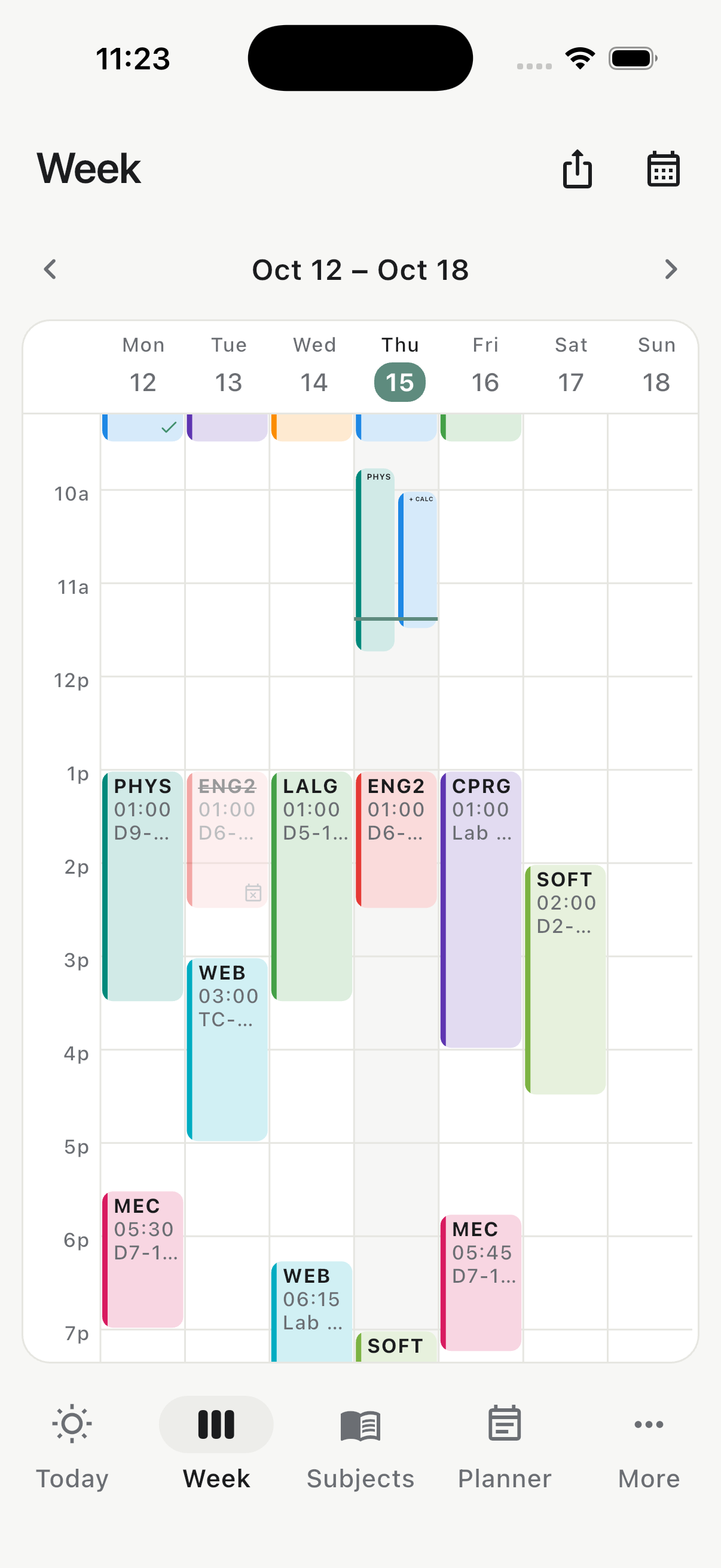
A weekly view should make the pattern visible immediately: which mornings begin early, where travel time is tight and which days have useful gaps. A daily timeline then helps with the immediate question: what is next?
Handle classes that do not repeat weekly
Real timetables contain exceptions. Some classes happen only on specific dates; others alternate by week or appear as an extra meeting before an exam. A good timetable app should let you add these without creating a fake recurring series.
For a single extra session, add the exact date. For a moved class, edit only that occurrence. For an official make-up day where the university follows another weekday's timetable, replace that day with the correct schedule and keep a way to restore it if the announcement changes.
Record cancellations and holidays explicitly
Deleting a cancelled class can hide why the denominator changed. Marking it cancelled preserves the history while preventing it from being treated as an absence. The same principle applies to holidays: the calendar should show that the timetable was intentionally suspended, not accidentally left empty.
Connect the timetable to attendance
A standalone schedule tells you where to be. An integrated attendance timetable also lets you mark what happened and immediately updates each subject's percentage, safe absence margin and recovery requirement. This reduces duplicate entry and makes it easier to catch an unmarked class before the week ends.
Review the weekly view alongside subject-level insights. A dense week may improve a low percentage quickly if you attend every meeting, while several cancelled classes can delay recovery. Use the Attendance Simulator when you need to test the next few outcomes without changing the real record.
Add exams, assignments and study tasks
Keep fixed academic events such as exams and assignment deadlines beside the timetable. Use a separate student to-do list for actions such as reading a chapter, preparing lab materials or revising a topic. Separating events from actions keeps both views readable.
A five-minute weekly review
- Resolve every unmarked class from the previous week.
- Add announced cancellations, extra classes and room changes.
- Check exams and deadlines for the next seven days.
- Look for subjects near or below their attendance target.
- Turn the next required actions into a short to-do list.
Classly combines Today and Week views with attendance, Calendar exceptions, Planner deadlines and optional Google Calendar Sync. Core timetable and attendance data works offline without a Classly account.

More attendance tools
Common questions
Should a college timetable use a day view or a week view?
Both are useful. Day view is best for the next action; week view is better for finding clashes, heavy days and open study blocks.
How should I record a one-off make-up class?
Add it as a specific-date class or a one-day exception instead of changing the recurring schedule for every week.