How to start Classly with your current attendance
Updated: 2026-10-15
Before you enter anything
Open your college portal, attendance register or the latest record from your instructor. For every subject, write down two numbers: classes held and classes attended. Keep laboratories or tutorials separate if the institution reports them separately.
Do not copy only a rounded percentage when the counts are available. For example, 65% could mean 13 of 20 or 65 of 100. Both display the same percentage, but reaching a 75% target requires 8 consecutive classes in the first case and 40 in the second.
1. Open the manual-count screen
In Classly, open Insights → Can I miss?. In Classly 3.2 this area is labelled Subjects. Find the subject you want to initialise and tap Update Counts Manually. If that action is missing, update to Classly 3.2 or later before continuing.
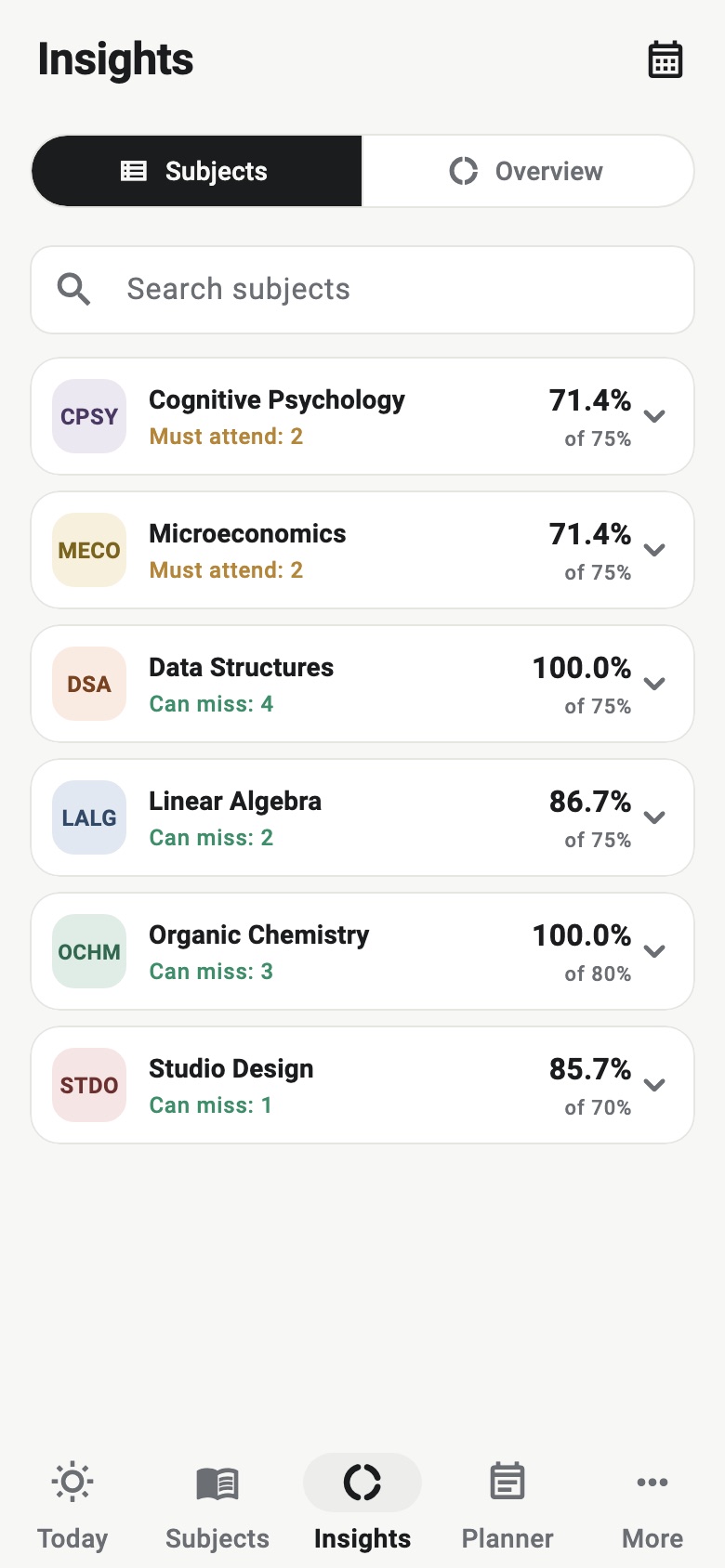
2. Enter held and attended counts
Enter the totals exactly as they appear in the official record. Suppose 40 mathematics classes have taken place and you attended 26. Enter 40 held and 26 attended. The starting attendance is:
26 ÷ 40 × 100 = 65%
Attended must never be greater than held. Cancelled classes normally belong in neither total, unless your institution's official record treats them differently.
3. Handle today's classes once
Classly asks whether the totals already include today's classes. Answer carefully: this prevents a class in the imported total from also being counted as a new scheduled class. If the portal was updated after today's lessons, the totals probably include them. If it shows only the record through yesterday, they probably do not.
When uncertain, compare the portal's held count with the number shown before and after today's classes, or ask the instructor. Fixing the boundary now is easier than finding a duplicated class later.
4. Save and check the result
Tap Save and confirm that the subject shows 26 of 40, or 65%. Test the next-class arithmetic before repeating the process for other subjects:
- If you attend the next class, the record becomes 27 of 41, or 65.85% when rounded down to two decimal places.
- If you miss it, the record becomes 26 of 41, or 63.41%.
- At a 75% target, 26 of 40 requires 16 consecutive attended classes, reaching 42 of 56.
If the displayed result differs, first check whether today's classes were included twice and whether held and attended were entered in the correct fields.
When you know only the percentage
Find the held count before estimating the attended count. With 40 held and a reported 65%, calculate 40 × 0.65 = 26 attended. This works when the displayed percentage is exact. If the portal rounds its percentage, several attended counts may appear to match, so ask for the underlying counts instead of guessing.
Never invent a held count from the number of teaching weeks alone. Holidays, cancellations, extra classes and timetable changes can make the real total different from the plan.
Repeat for every subject
Manual counts belong to an individual subject. Enter them separately so a high overall result does not hide a subject below its own target. When adding a subject in the middle of the semester, set its start date to today and use manual counts for everything before that date.
Dates covered by manual counts are locked in Calendar because their attendance is already represented by the totals. To edit those dates individually, first update or remove the manual counts from the same subject screen, then reconcile the new record with the official portal.
Keep the starting point trustworthy
After setup, mark each future class once and compare Classly with the official record weekly. Classly is a personal planning tool; your institution remains the source of truth for attendance, accepted absences and examination eligibility.

More attendance tools
Common questions
Can I enter only my current attendance percentage?
Use the actual held and attended counts when possible. A percentage alone does not contain enough information to calculate how many future classes you can miss or need to attend.
What if my manual counts include today's classes?
Choose the matching option when saving so today's scheduled classes are not counted twice.
Can I remove the starting counts later?
Yes. Open the same subject screen and use Remove manual counts; review the result before continuing to mark classes.