How to track class attendance on your phone
Updated: 2026-10-15
1. Create each subject separately
Add the subject name, colour and attendance target. Keep laboratories or tutorials separate when your institution checks them independently. The target should come from the current syllabus or regulations, not from a general assumption about your country.
Starting with separate subjects lets the app show where action is needed. A strong overall percentage can otherwise hide one subject below its requirement.
2. Add the recurring timetable
Enter the weekday, start and end time, room and recurrence for each class. Include the semester date range so classes do not continue into holidays. If the app supports timetable import, review the imported data before accepting it; room changes and alternating weeks are common sources of mistakes.
3. Mark every class while it is fresh
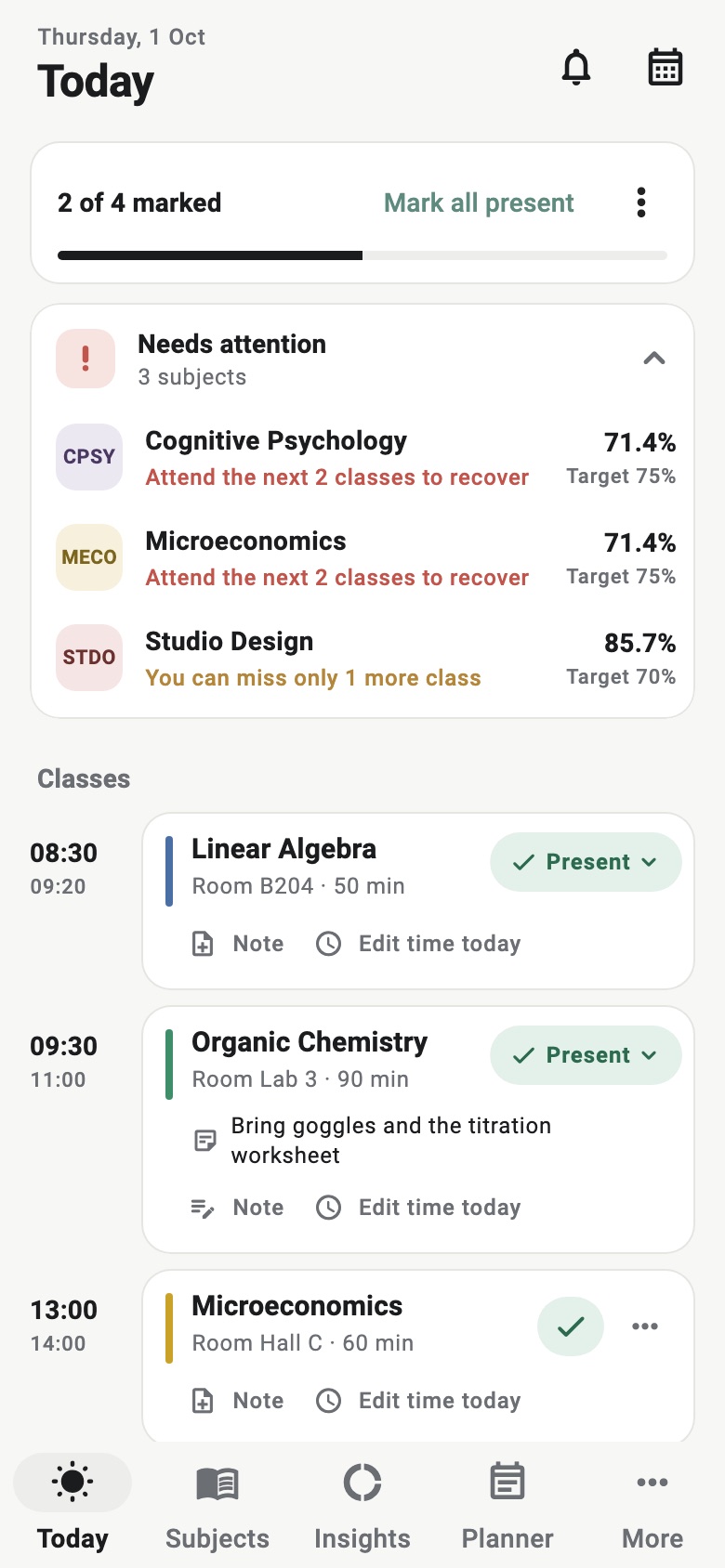
Use present when you attended, absent when the class happened without you, and cancelled when the class did not take place. Do not mark a cancelled class absent merely because it appears on the original timetable. If you are unsure, leave it unmarked and confirm rather than guessing.
The best moment is at the end of class. A reminder can help, but keep notifications limited enough that they remain useful.
4. Correct exceptions instead of duplicating them
If one class moves from 9:00 to 11:00, edit that day's occurrence rather than the whole weekly schedule. Add make-up classes as extra meetings and mark holidays or cancellations explicitly. Correct occurrence data keeps both the calendar and attendance denominator accurate.
5. Read the subject-level insight
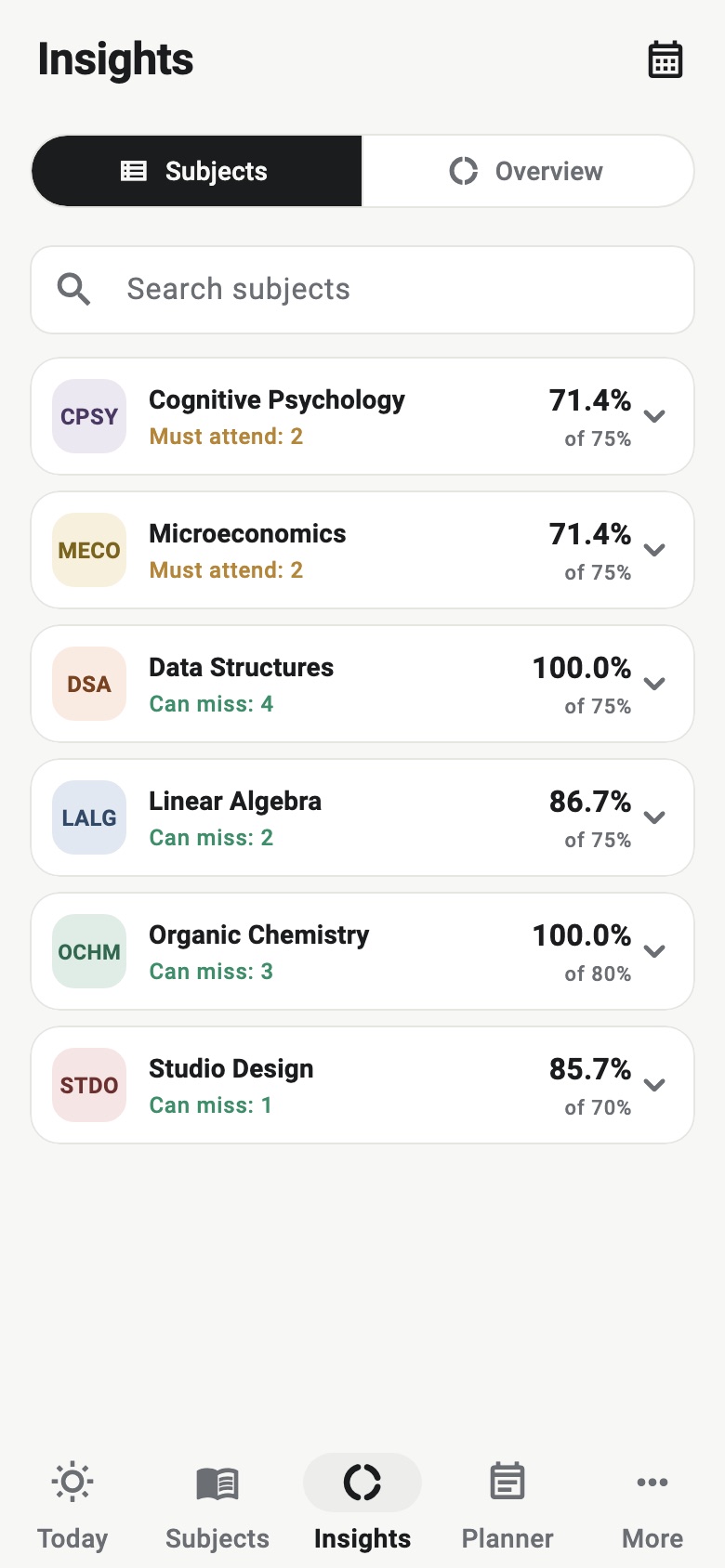
For each subject, look beyond the percentage. A useful tracker should tell you either how many classes you can still miss while staying at target or how many consecutive classes you need to attend to recover. These answers require the held and attended counts, so preserve them even when the interface shows a rounded percentage.
Before planning an absence, use an attendance simulator to test the next few classes. A projection makes the trade-off visible without changing the real attendance record.
6. Compare with the official record
Your phone is a personal tracker, not the institution's source of truth. Compare it with the student portal or instructor record weekly. Check for late attendance entries, separately counted laboratory hours, added meetings and classes that were cancelled after your timetable was created.
When you find a mismatch, resolve the underlying class rather than manually forcing the percentage. Keep evidence for any correction request.
7. Keep the week and your tasks together
A weekly timetable view makes clashes and heavy days easier to spot than a list of isolated classes. Pair it with a student to-do list for preparation, assignments and follow-up work that does not belong in the attendance record itself.
8. Back up or export when useful
If your tracker stores data locally, use its backup or export feature before changing phones or reinstalling. Store exported files somewhere you control and remember that timetable notes can contain personal information. Do not publish a raw backup or diagnostic report.
A simple weekly routine
- Resolve every unmarked class.
- Review next week's cancellations, extra classes and room changes.
- Check subjects below target or with no remaining absence margin.
- Add newly announced exams and assignments.
- Create a backup at sensible intervals.
Why phone tracking works
Your phone is already present when a class starts and ends, which reduces delayed data entry. The value comes from consistency rather than complexity: one accurate tap per class, a short weekly comparison and early action when a subject approaches its limit.
Classly is free, works offline and requires no account. Its calculations can help you understand your record, but your institution decides the official target, accepted absences and examination eligibility.
Protect the data on your phone
Attendance can reveal your routine, subjects and locations. Use a device passcode, review what an export contains before sharing it and avoid placing backups in public folders. If an app offers diagnostics, inspect the report and remove unnecessary personal notes before sending it.
Offline storage reduces routine data transmission, but it also makes your backup habit important. Keep a recoverable copy without treating a screenshot or exported timetable as something safe to post publicly.

More attendance tools
Common questions
When should I mark attendance on my phone?
Mark it at the end of the class or immediately afterward, while the status and any timetable change are still clear.
Does Classly require an account?
No. Classly works offline and does not require an account.