How to change semester dates in Classly
Updated: 2026-10-15
1. Open Semester Parameters
Open Insights → Overview, scroll to Semester Parameters, and review the current start and end dates before changing them. This screen summarises the active semester and its attendance calculations.
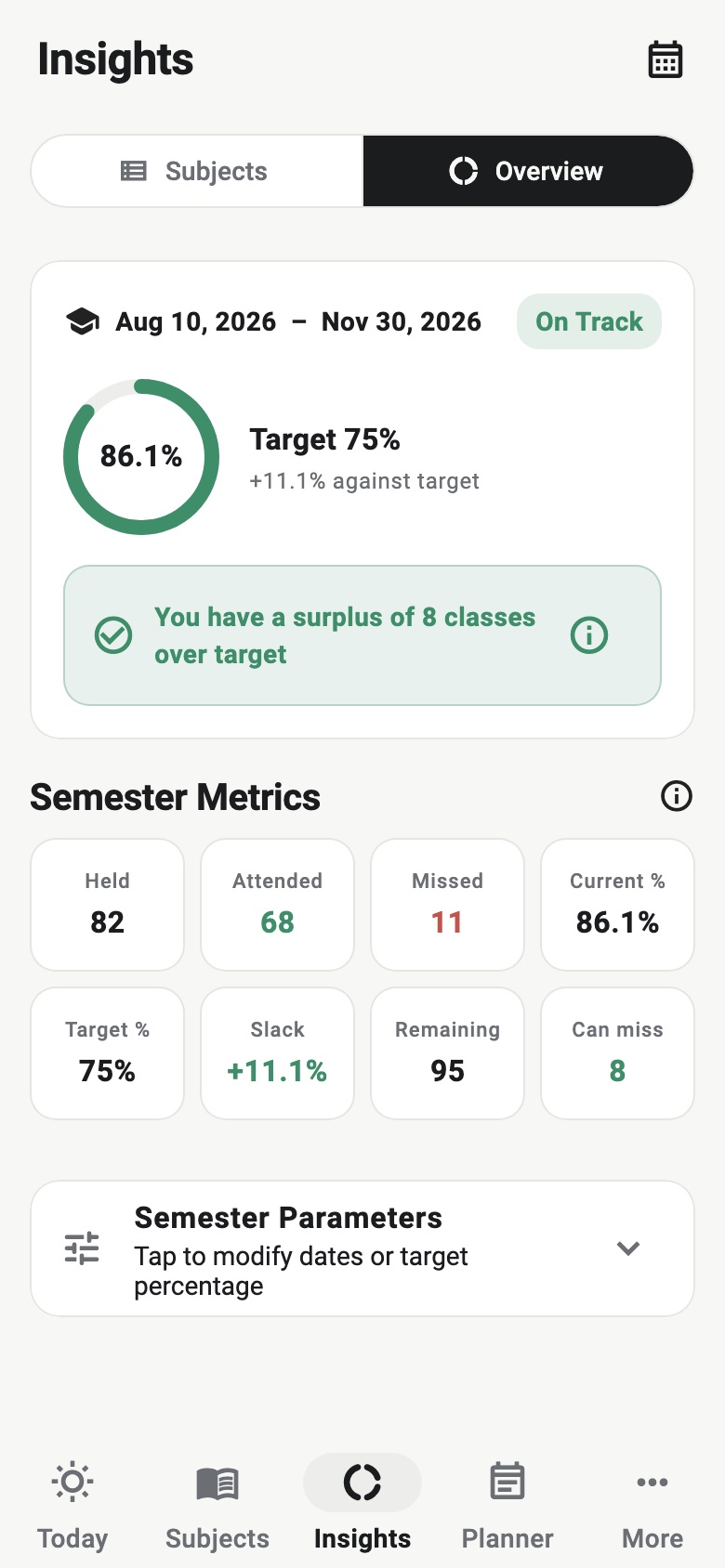
2. Choose which date to change
Tap End Date when the semester has been extended or the original end date was entered incorrectly. To replace the whole range, tap Start Date; after selecting it, Classly asks you to choose the end date as well.
A semester can be up to one year long. Use the official academic calendar, but adjust it for your programme if its teaching dates differ from the institution-wide dates. The relevant range is the one in which your tracked classes belong.
3. Verify the recalculated plan
The date change is saved immediately. Existing attendance marks remain, while future scheduled classes and date-dependent insights follow the updated range. Return to Can I miss? and confirm that the remaining-class estimate now matches the revised calendar.
For example, extending a subject taught three times a week by two teaching weeks can add about six scheduled meetings. That may change how many of the remaining classes you need to attend, even though the current held and attended counts have not changed.
If the semester already ended
When the stored end date has passed, Overview shows Change End Date near the top. Choose a later date to continue the same semester. Use this when teaching, examinations or replacement classes were moved beyond the original date.
Do not create a duplicate semester merely to add a short extension. Keeping the same semester preserves the relationship between its subjects, attendance marks and remaining schedule.
Changing dates versus starting a new semester
Change the date range when you are correcting or extending the current term. Choose Start New Semester when a genuinely new academic term begins with a new set of subjects.
Starting a new semester clears the current subjects and attendance from the active view after saving a copy under More → Semester Backup → Previous Semesters. Before proceeding, open that backup area and confirm the previous semester is available.
What changing dates does not fix
A semester date range controls when the schedule runs; it does not correct an individual timetable exception. If one class moved, was cancelled or was added, edit that occurrence in Calendar. If a subject's recurring timetable changed from a particular date, update the subject and apply the new timetable from that date.
Likewise, changing dates does not alter an incorrect held or attended total. Correct the affected class or update the subject's manual counts instead.
A quick verification checklist
- Confirm the new range against the current academic calendar.
- Check that previously marked classes are still present.
- Review future classes near both boundaries.
- Confirm each subject's remaining-class estimate.
- Compare current attendance with the official portal.
Calendar changes can affect planning estimates, but Classly does not decide the official teaching period or attendance rules. Follow your institution's published calendar and use the app to keep a personal, verifiable record.

More attendance tools
Common questions
Will changing semester dates delete my attendance?
No. Classes you already marked are not deleted when you adjust the current semester's date range.
How do I extend a semester that already ended?
Open Insights → Overview and use Change End Date at the top, then choose a later date.
Should I change dates or start a new semester?
Change dates when the same semester was extended or entered incorrectly. Use Start New Semester when beginning a genuinely different term.